

On this page
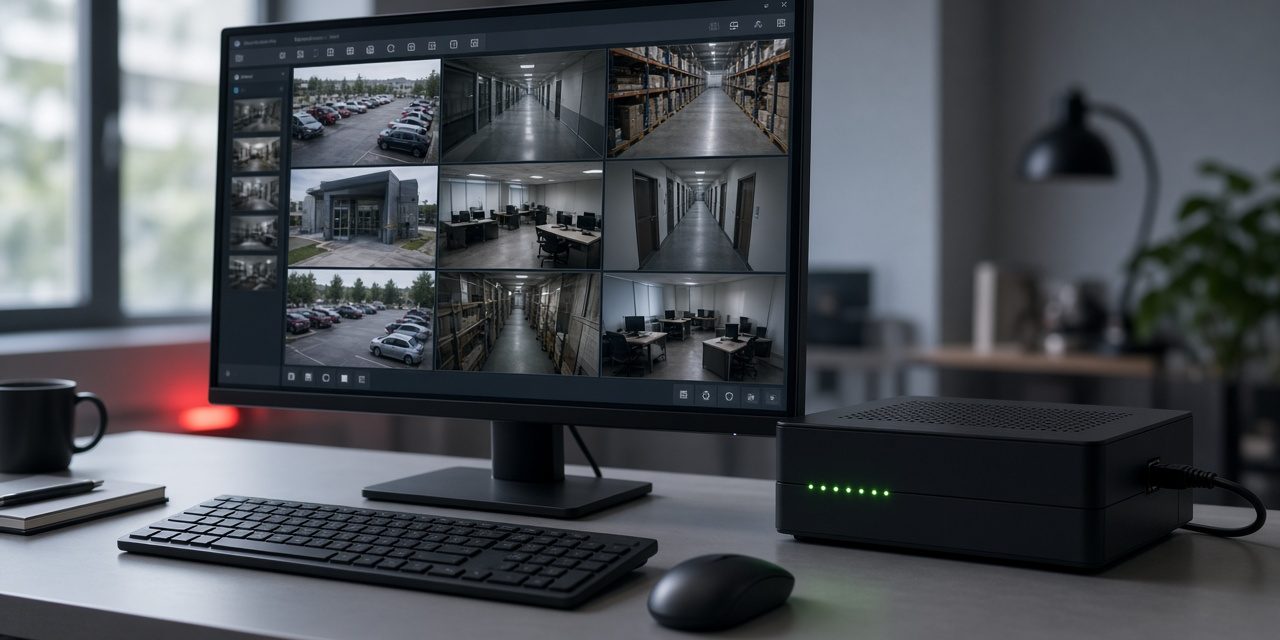
DMSS is Dahua’s viewing app, and it also runs on Windows and macOS. Once your DVR or NVR is added, the PC shows live view, playback, and alarms from every camera on the recorder. This guide covers the two ways to add the recorder (by serial number over P2P, or by its local IP address), how to confirm the connection, and how to fix the problems that come up most often.
Before you start
Have these four things ready. They save most of the back-and-forth later.
- DMSS installed on the PC. Use the Windows or macOS version from Dahua’s official download page.
- The recorder online. An Ethernet cable from the DVR/NVR to the router, and internet on that router if you plan to use P2P.
- The serial number (SN). A 15-character code on the label under the recorder and on its P2P page.
- The recorder’s admin password. This is the password set when the DVR/NVR was first initialized, not the password of your DMSS account.
Which method should you use?
| P2P (serial number) | Local IP address | |
|---|---|---|
| Works from | Anywhere with internet | The same network as the recorder |
| Needs internet | Yes | No |
| Router settings | None | None on the local network |
| What you enter | Serial number, username, password | IP address, port, username, password |
| Best for | Remote viewing from home or another branch | A control-room PC on site |
For most users, P2P is the easier choice: there is nothing to configure on the router, and the same entry works inside and outside the building.
Method 1: Add the recorder by serial number (P2P)
Step 1: Turn on P2P on the DVR/NVR
- On the monitor connected to the recorder, sign in with the admin account.
- Open Main Menu → Network → P2P. The wording can differ slightly between firmware versions.
- Tick Enable and apply.
- Wait until the status reads Online. This can take a minute or two.
- Write down the serial number shown on the same page, or keep the page open to scan its QR code.
Step 2: Add the device in DMSS on the PC
- Open DMSS on the PC and choose Add Device.
- Pick SN (serial number) as the add method.
- Type the serial number exactly as shown on the recorder.
- Give the device a name you will recognize, such as “Warehouse NVR”.
- Enter the recorder’s username (usually
admin) and its password. - Save. The recorder appears in the device list and its cameras load.
Method 2: Add the recorder by local IP address
Use this method when the PC and the recorder are on the same network, or when the site has no internet connection.
Step 1: Find the recorder’s IP address
- On the recorder: Main Menu → Network → TCP/IP shows the IP address in use.
- From a PC on the same network: Dahua’s free ConfigTool scans the network and lists every Dahua device with its IP address.
Give the recorder a fixed (static) IP address. If the router hands it a new address after a restart, DMSS will lose it.
Step 2: Add the device in DMSS
- In DMSS, choose Add Device, then IP/Domain.
- Enter the recorder’s IP address, for example
192.168.1.108. - Enter the port. The default TCP port on Dahua recorders is 37777; use another value only if it was changed on the recorder.
- Enter the recorder’s username and password.
- Save and wait for the device to come online.
Check that the connection works
- The device shows as Online in the device list.
- Live view opens on every channel.
- Playback finds recordings for today.
- The device information page opens without errors.
Common problems and how to fix them
The device shows Offline
The recorder is not reaching Dahua’s P2P service.
- Confirm that P2P is enabled and its status on the recorder reads Online.
- Check that the router has internet, and that the recorder’s gateway and DNS settings point to the router.
- Restart the router, then the recorder, and wait a few minutes before checking again.
- If the recorder uses Wi-Fi, connect it to the router with a cable.
- If it is still offline after all of the above, contact Dahua support with the serial number.
“Invalid username or password”
DMSS needs the recorder’s own login, not your DMSS account. If the recorder password was changed recently, edit the device in DMSS and enter the new one. Several wrong attempts in a row can lock the account for a while; wait, then try again with the correct password.
“Connection failed”
- Recheck the serial number or IP address character by character.
- Make sure the port matches the recorder’s TCP port (37777 unless it was changed).
- Make sure the add method matches: SN for P2P, IP/Domain for a local address or a DDNS name.
- Allow DMSS through Windows Firewall or the antivirus on the PC.
Live view stays black or keeps loading
- Switch the channel from the main stream (HD) to the sub stream (SD).
- Lower the camera’s bitrate if it is set very high.
- Test the internet speed at both ends when viewing remotely; the upload speed at the site matters most.
- Close DMSS, open it again, and reconnect.
The device is added, but no cameras appear
This is a recorder or camera issue rather than a DMSS one. Check on the recorder’s own monitor that every camera shows video, that each channel is enabled, and that the cables or PoE ports are connected.
The device keeps going offline
- Use a wired connection instead of Wi-Fi wherever possible.
- Restart the router and modem, and check whether the internet line drops during the day.
- Update the recorder firmware to the latest release for its model.
Frequently asked questions
Can I add more than one recorder to DMSS on the same PC?
Yes. DMSS manages several DVRs, NVRs, and IP cameras at once, each with its own entry in the device list.
Which method is the easiest?
P2P by serial number. It needs no port forwarding or router changes, and the same entry works on site and remotely.
Do I need a DMSS account?
Some local features work without one, but signing in keeps your device list in sync across your PC and phone and is recommended for remote viewing.
Should I use the IP address or P2P?
Use the IP address for a PC on the same network as the recorder, such as a security room. Use P2P to view the cameras from anywhere else.
Need help with your cameras?
PSS designs, installs, and supports CCTV systems, including recorder setup, remote viewing, and network configuration. Contact the PSS team to book a visit or get help with an existing system.